Friday, July 5, 2013

v20 (1 of 3): dual genome display

The version 20 of WashU EpiGenome Browser sees lots of exciting new features, which will be talked about in 3 blog posts. Here we introduce the "dual genome display". Follow the links to see embedding browser, and custom track cache refreshing.

As usual, you can get the source code from our server or dropbox. A short guide has been written to help you install a local mirror of the Browser. Feel free to email us about problems.


The Dual Genome Display

Click genome logo on top of the browser page, to see a small menu showing up:


Click "Add new genome" option, the select-a-genome panel will be shown:


Suppose we choose mm9 by clicking the Quick button, a new browser panel about Mouse genome will be shown (beneath the original hg19 genome):


The newly added mouse genome can be navigated separately from the existing human genome. All the browser functions and apps can be applied on the mouse genome. Give it a try and have fun! When you are done, you can click the red X button to remove the mouse genome.

It's not limited to "dual" genomes only, you can add 3 or more genomes if you prefer.

You can show the same genome (e.g. all hg19) multiple times. In that case, the custom track information will be shared among all the browsers from the same genome.

Friday, June 14, 2013

Split to get a new panel


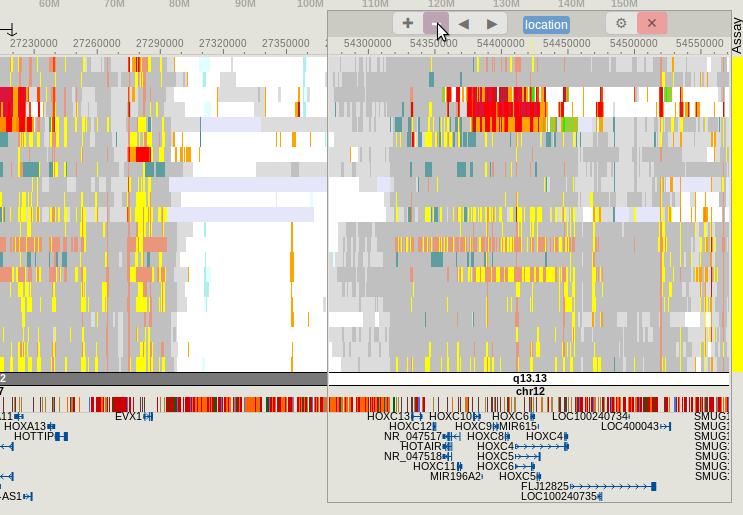
Above screenshot shows tracks over HOXA and HOXC gene clusters in the human genome, each from a separate chromosome. The HOXA gene cluster is shown on left, while the HOXC gene cluster is shown in a secondary panel, highlighted in blue box, between the main panel and the metadata color map.

The awesome thing is that you can zoom and scroll this secondary panel independently, in addition to the main panel. Thus you will have huge freedom when comparing multiple genomic locations under the same set of tracks.


Splitting panel


Click "Apps" button on the top right, and select "Secondary panel":


The browser will shrink width to make room for the new panel, which is blank until you choose the view range:


Click the SELECT VIEW RANGE button to see the familiar range selection box:


Once you've chosen a gene or entered a coordinate, contents will be shown in the secondary panel over the region you selected:


Navigating the new panel


Click the "minus sign" button a few times to zoom out and see the entire HOXC cluster:


You can perform the same scrolling and zoom-in with the secondary panel as you can do with the main panel, for instance zooming-in:


Using the split panel


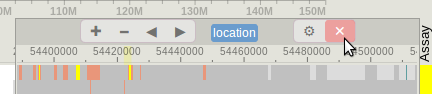
A row of buttons on the top portion of secondary panel gives you functions that can be applied to THIS panel, e.g. click X to delete it:


When you delete a track from the secondary panel, this track will also be deleted from the main panel.

When you change display mode or rendering style of a track, the changes are always applied to both main and split panel.

For numerical tracks, the browser keeps a common scale between main and split panels.

For annotation tracks that may show variable amount of items in the two panels, the browser always keep the track height the same.


Last modified: Apr 4, 2014

v19: navigation and apps buttons, adjust browser panel width

This version of our code release features more easily accessible buttons for navigation and apps functions. In the past these buttons are in the floating toolbox, but now they are fitted into the header of browser panel:


The group of buttons on left (in red enclosure) are navigation buttons, they are:
+: zoom in 1 fold
-1/3: zoom out 1/3 fold
-1: zoom out 1 fold
-5: zoom out 5 fold
<: pan left
>: pan right

The group on right (in blue enclosure) are application buttons:
Tracks: click to access the collection of tracks for this genome, including experimental assay tracks and annotation tracks
CustomTK: custom track submission and management interface
Apps: list of applications
Gear button: options for adjusting browser panel width

Please note that the red and blue enclosure are only for screenshot highlighting.


A similar set of buttons is available for secondary panels.


To adjust browser panel width, click Gear button (⚙) to show the options:


Click  in the first row, an orange pane appears covering the browser panel, as an indication of the perspective dimension to adjust to:


Then press to apply the new width.

The second rows of buttons are used to adjust the strip of space on the left of browser panel (where track names are shown).

Download from our server, or dropbox.