Friday, June 14, 2013

Split to get a new panel


Above screenshot shows tracks over HOXA and HOXC gene clusters in the human genome, each from a separate chromosome. The HOXA gene cluster is shown on left, while the HOXC gene cluster is shown in a secondary panel, highlighted in blue box, between the main panel and the metadata color map.

The awesome thing is that you can zoom and scroll this secondary panel independently, in addition to the main panel. Thus you will have huge freedom when comparing multiple genomic locations under the same set of tracks.


Splitting panel


Click "Apps" button on the top right, and select "Secondary panel":


The browser will shrink width to make room for the new panel, which is blank until you choose the view range:


Click the SELECT VIEW RANGE button to see the familiar range selection box:


Once you've chosen a gene or entered a coordinate, contents will be shown in the secondary panel over the region you selected:


Navigating the new panel


Click the "minus sign" button a few times to zoom out and see the entire HOXC cluster:
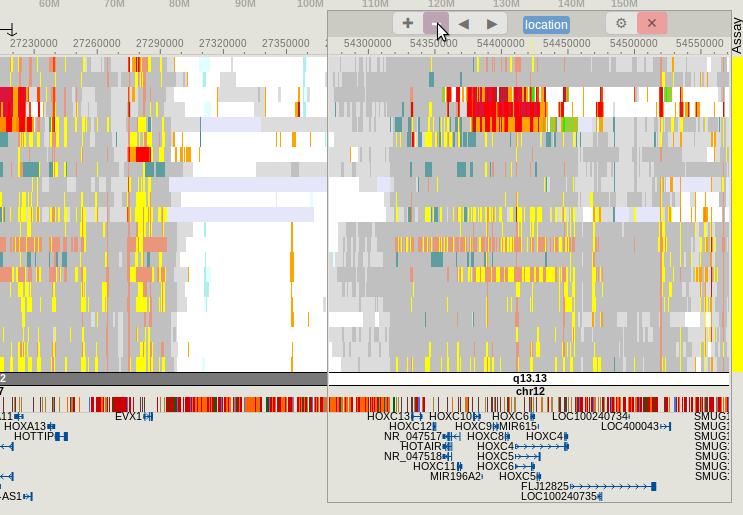


You can perform the same scrolling and zoom-in with the secondary panel as you can do with the main panel, for instance zooming-in:


Using the split panel


A row of buttons on the top portion of secondary panel gives you functions that can be applied to THIS panel, e.g. click X to delete it:


When you delete a track from the secondary panel, this track will also be deleted from the main panel.

When you change display mode or rendering style of a track, the changes are always applied to both main and split panel.

For numerical tracks, the browser keeps a common scale between main and split panels.

For annotation tracks that may show variable amount of items in the two panels, the browser always keep the track height the same.


Last modified: Apr 4, 2014

v19: navigation and apps buttons, adjust browser panel width

This version of our code release features more easily accessible buttons for navigation and apps functions. In the past these buttons are in the floating toolbox, but now they are fitted into the header of browser panel:


The group of buttons on left (in red enclosure) are navigation buttons, they are:
+: zoom in 1 fold
-1/3: zoom out 1/3 fold
-1: zoom out 1 fold
-5: zoom out 5 fold
<: pan left
>: pan right

The group on right (in blue enclosure) are application buttons:
Tracks: click to access the collection of tracks for this genome, including experimental assay tracks and annotation tracks
CustomTK: custom track submission and management interface
Apps: list of applications
Gear button: options for adjusting browser panel width

Please note that the red and blue enclosure are only for screenshot highlighting.


A similar set of buttons is available for secondary panels.


To adjust browser panel width, click Gear button (⚙) to show the options:


Click  in the first row, an orange pane appears covering the browser panel, as an indication of the perspective dimension to adjust to:


Then press to apply the new width.

The second rows of buttons are used to adjust the strip of space on the left of browser panel (where track names are shown).

Download from our server, or dropbox.

Friday, May 31, 2013

v18: new page look, BAM file support

Version 18 code release features a lot of improvements, including new look of user interface throughout the entire browser, and most importantly, the support of BAM files.

You can get the source code from dropbox, or from our web site.


BAM file support


Open up the browser and click "CustomTk" button in the toolbox to show this:


Click button "BAM" to and we're ready to submit a custom BAM track:


Enter URL and track name, and press  . Following shows the display of sample BAM track of human hg19 genome:


Clicking on a read will invoke a bubble showing detailed info about the read, including its alignment:


Showing a paired-end sequencing assay result, where reads mapped on forward strand are in  teal , and reads on reverse strand are in  fuchsia . Mismatches are in  yellow . Clipped bases are in  gray .


Details about mismatches, insertion, deletion, clipping can also be viewed in the bubble. For instance:


A BAM track can also be submitted via URL parameter, and also through data hub.

For instance, the following URL displays a BAM file in hg19 genome:

http://epigenomegateway.wustl.edu/browser/?genome=hg19&custombam=sample+BAM+track,http://vizhub.wustl.edu/hubSample/hg19/bam1.bam,thin


Finally, the SAM files are no longer supported.


Credit: Chee-Hong Wong


New user interface